Old Photo Restore
Restore old, damaged, or faded photos using AI. Repair scratches, fix tears, enhance faces, and bring cherished memories back to life.
About this tool
Repair scratches, creases and fading
Old Photo Restore is built for scanned prints that have been through decades of handling: scratches, tears, fold lines, stains, water spots and faded contrast. Upload the scan, tick the problems you see, and the AI repairs the damage while keeping the authentic character of a vintage photograph rather than turning it into a modern digital image.
You can select any combination of five restoration tasks: remove scratches and tears, restore faded colors, remove stains and spots, fix fold lines and creases, and enhance and sharpen. If nothing is ticked the tool performs a complete restoration. The image model returns the full picture, shown in a before-and-after slider.
Example
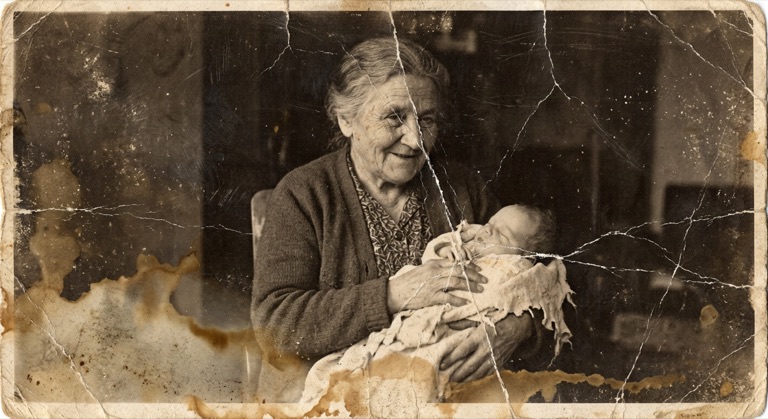
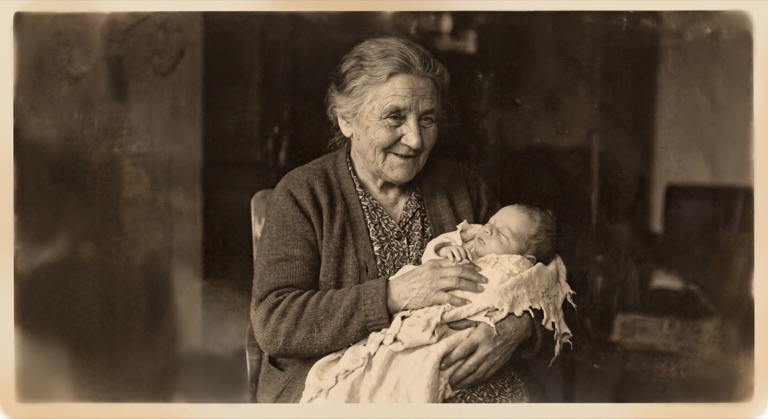
Complete restoration. The before photo is AI-generated, standing in for an upload. The result is unedited tool output, November 2026.
Use it for
- Family history: Restore old photos of relatives for a memorial, reunion or genealogy project.
- Damaged prints: Repair a torn or creased photograph that was folded in a wallet for years.
- Archive scans: Clean stained and faded documents or club photos before sharing them.
How it works
- Scan or photograph the print and upload it as PNG, JPG or WebP up to 10MB.
- Tick the restoration options that match the damage, or leave all unticked for a full restore.
- Click Restore and compare the result with the slider.
- Download the PNG, then colorize it if you want color.
3 credits per run. Credits never expire.
Questions
How many credits does restoration cost?
Three credits per photo, deducted after a successful run. Credits never expire.
Does it add color?
No. Restoration repairs damage and contrast. Run the Colorize tool on the result if you want color.
How should I scan the photo?
Scan flat at 300 dpi or more, or photograph it in even light without glare. Keep the file under 10MB.
Will it change faces?
The model is told to preserve the authentic look. Heavily damaged faces are reconstructed, so check the result carefully.