Headshots · 3 credits
A LinkedIn headshot from a selfie
Turn a phone selfie into a professional LinkedIn photo with studio lighting and a clean background. Keeps your likeness. 3 credits per headshot.
Your LinkedIn photo is the first thing recruiters and clients see, and a cropped holiday snap undersells you. The Headshots tool takes an ordinary selfie and rebuilds it as a professional portrait: studio lighting, a neutral backdrop, natural skin and head-and-shoulders framing, while keeping your face and likeness.
Pick the LinkedIn Professional style for a neutral corporate backdrop, or Corporate for a more formal dark gray or navy look. Each run produces one headshot, so you can try a couple of styles and keep the one that looks most like you.
Example
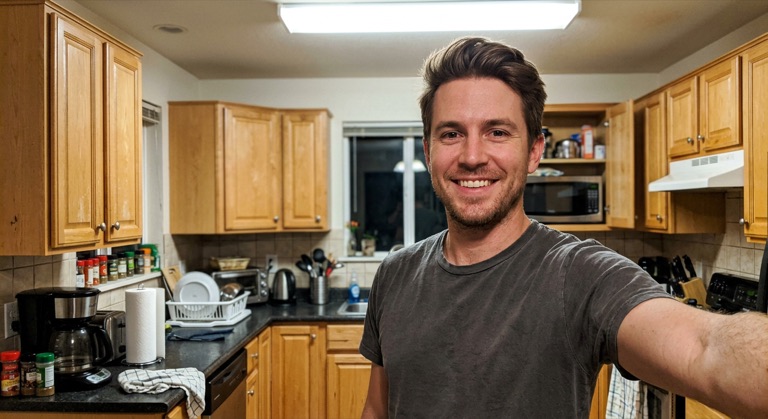

LinkedIn. The before photo is AI-generated, standing in for an upload. The result is unedited tool output, November 2026.
How to do it
- Take a selfie facing the camera in soft daylight, at arm's length, without sunglasses or a hat.
- Upload it to Headshots and choose LinkedIn Professional.
- Compare the result with your original and check it still looks like you.
- Download it and upload it to your LinkedIn profile.
Tips
- Face a window rather than standing with it behind you.
- Wear what you'd wear to a meeting; the style implies attire, but there's no outfit picker.
- Use the same headshot across LinkedIn, your email signature and company page for consistency.
3 credits per run. New accounts get 10 free credits; after that, credit packs start at $5 and never expire.
Questions
Will it look like me?
The model is instructed to keep your likeness and character while changing lighting, background and framing. Pick the run that looks most like you.
How much does it cost?
Three credits per headshot. New accounts get 10 free credits, enough for three tries.
Can I change my outfit?
Not directly. The styles imply suitable attire; for a specific change, use AI Replace on the result.